Q: How to reset product inventory to zero using an inventory order in MC Seller?
Q: How to change the inventory of all products to 0 in MC Seller?
Q: How to batch change product inventory to 0 in MC Seller?
A: Please follow the steps below:
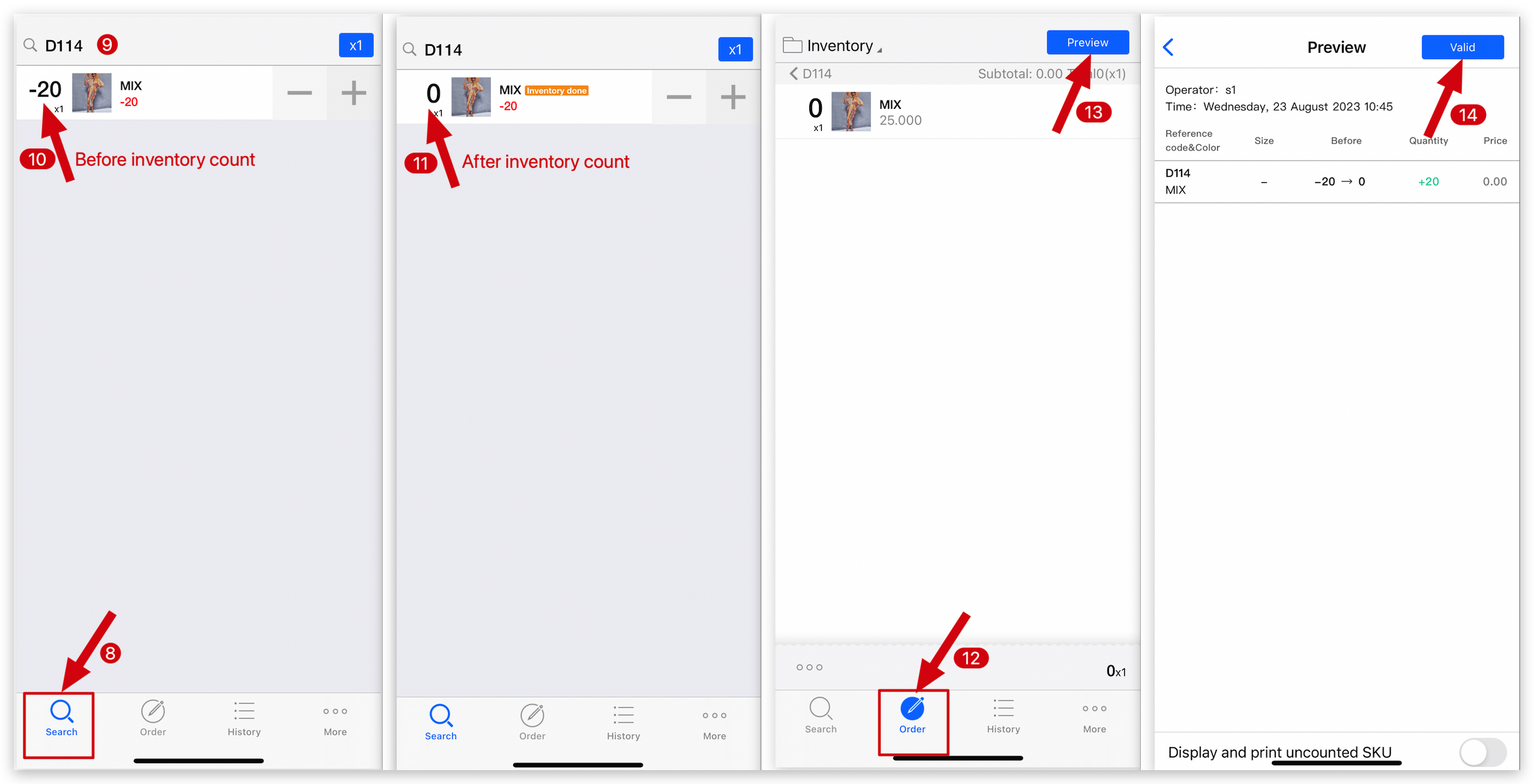
In MC Seller, "Order" page → Select document type: Inventory → Select range: All → Direct inventory, do not print

Go to "Search" page and enter reference → Enter the quantity to 0 → Go to "Order" page and tap "Preview" on top right corner → Valid
Kind Tips
- To start an Inventory process in MC Seller, you must select at least one product for stock counting.
- After performing the bulk action, the inventory quantities of all products will be reset to 0. This action cannot be undone, and the original inventory data cannot be recovered.
- Inventory counting only affects the inventory quantity. The sales quantity will remain unchanged.
- Once the inventory is validated, the stock quantities of all selected products will be updated.
- You can view the inventory history under Documents → Inventory.